


5 most viral Marketing posts from the Pros in January 2016
January 29, 2016
5 steps to creating the ultimate blog post
February 23, 2016


Would you like to know how to replicate any colour on the web for your own image designs?
This quick tip is incredibly useful and will help you save a shed load of time when looking to replicate colours to use in your own designs using tools such as; Canva, Piktochart, PicMonkey, Adobe Illustrator & more.
Watch the short snappy video tutorial below for a step by step guide explaining how to quickly and easily implement this very useful strategy.

If you're a visual learner, I've created a handy video tutorial below which will walk you step by step through the whole process. If you prefer reading, I've written step by step instructions below the video.
Unlock and watch the full step by step tutorial below to learn exactly how to copy any colour palette on the web.
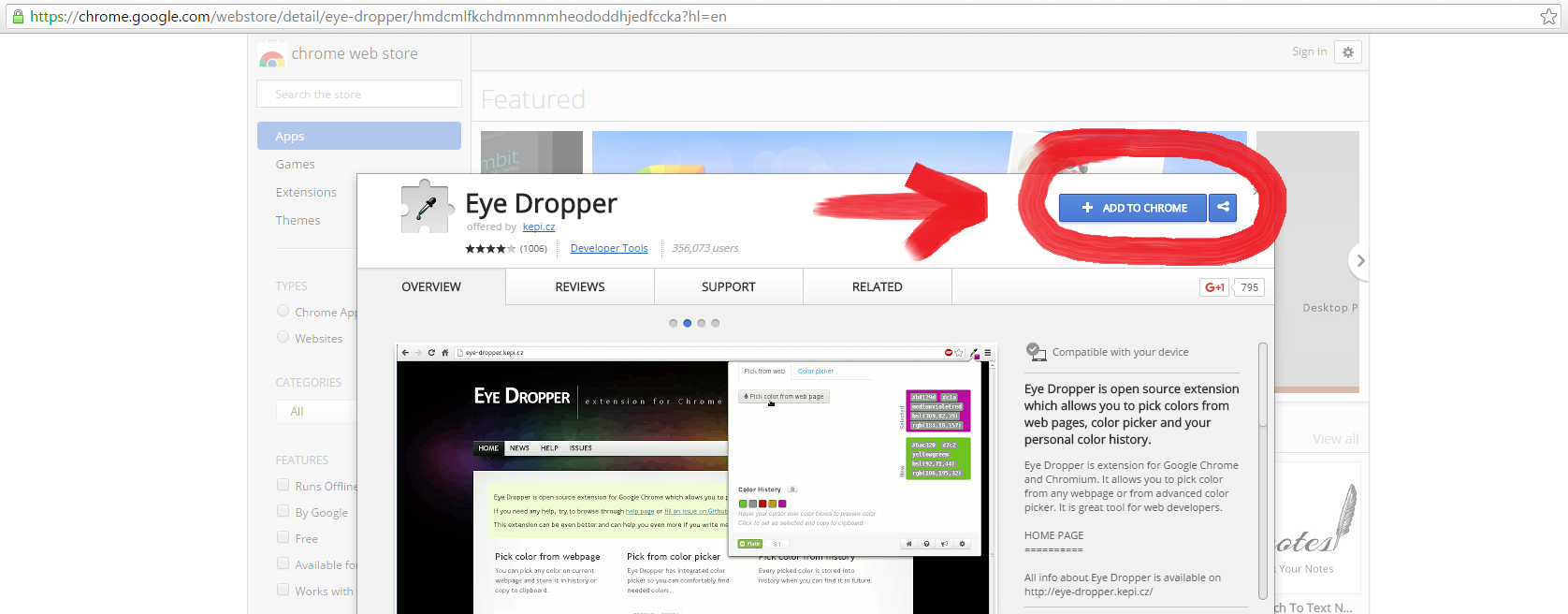
Step 1: Install Eye Dropper Chrome Plugin
First you need to install the Google chrome plugin, so from Google Chrome, go to the Eye Dropper Chrome plugin page via: this link and click 'add to chrome' to install the plugin.
Step 2: Pick the colour from a web page
Now you need to use Google Chrome and navigate to the website you would like to copy the colour from, click the Eye Dropper chrome plugin icon, then press 'Pick color from web page'.
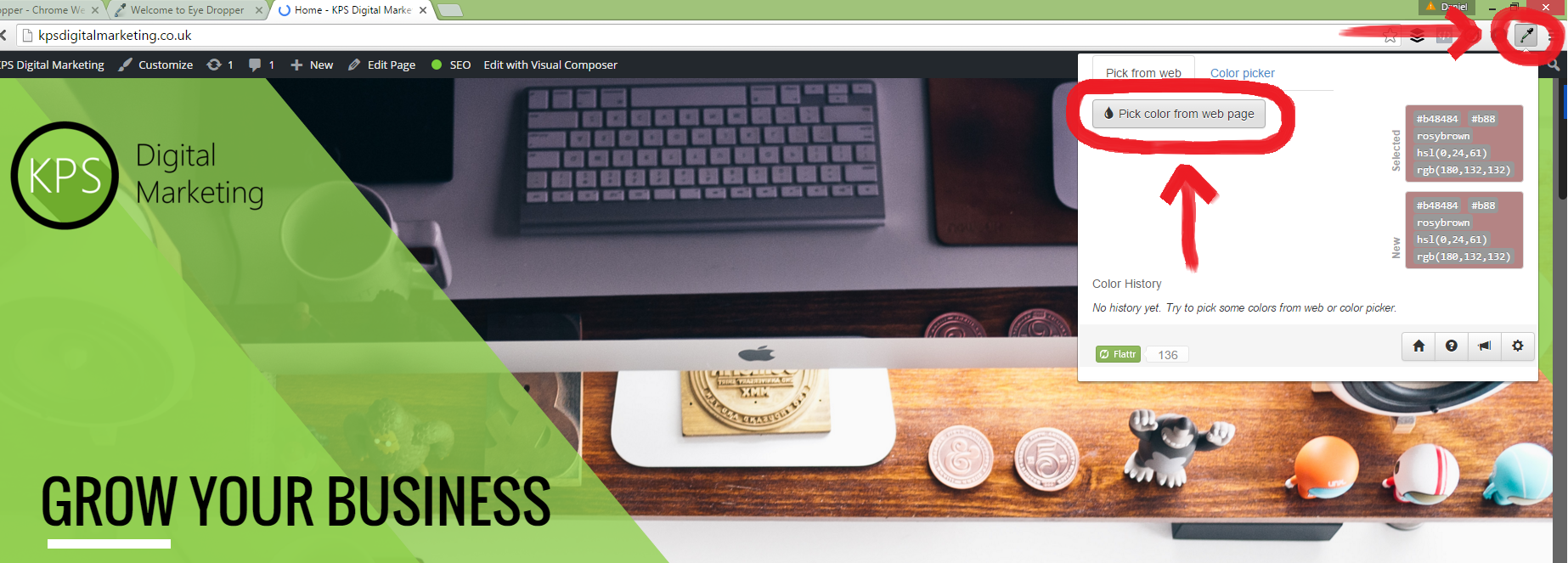
Step 3: Put your mouse over the colour and click
To pick the colour you would like to replicate, simply put your mouse over it and click on the page.

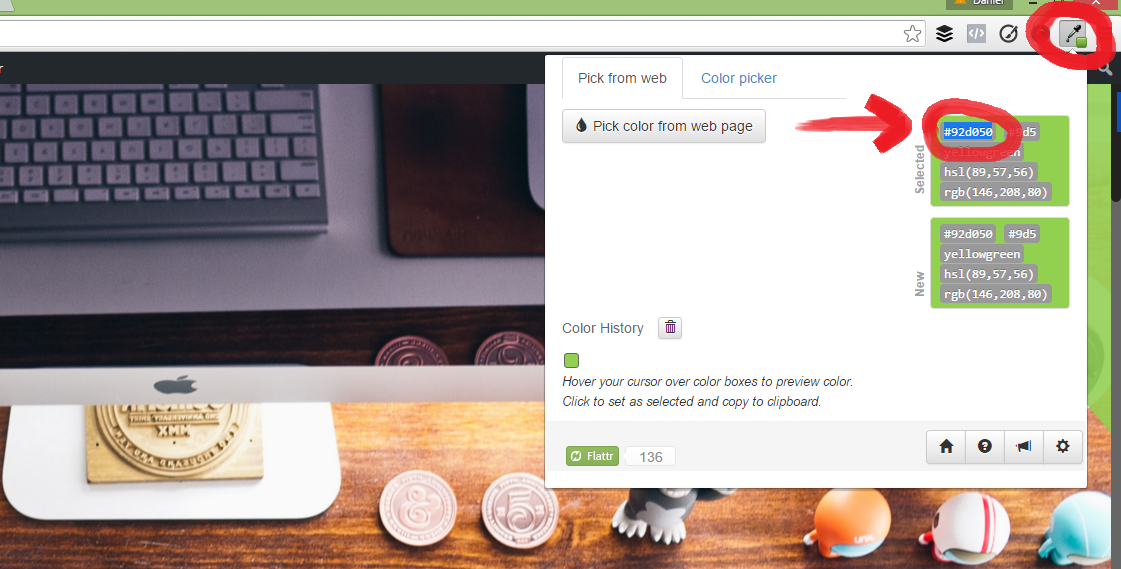
Step 4: Copy the colour code
To access the colour code, simply click the eyedropper tool again and copy the code which starts with a hashtag.
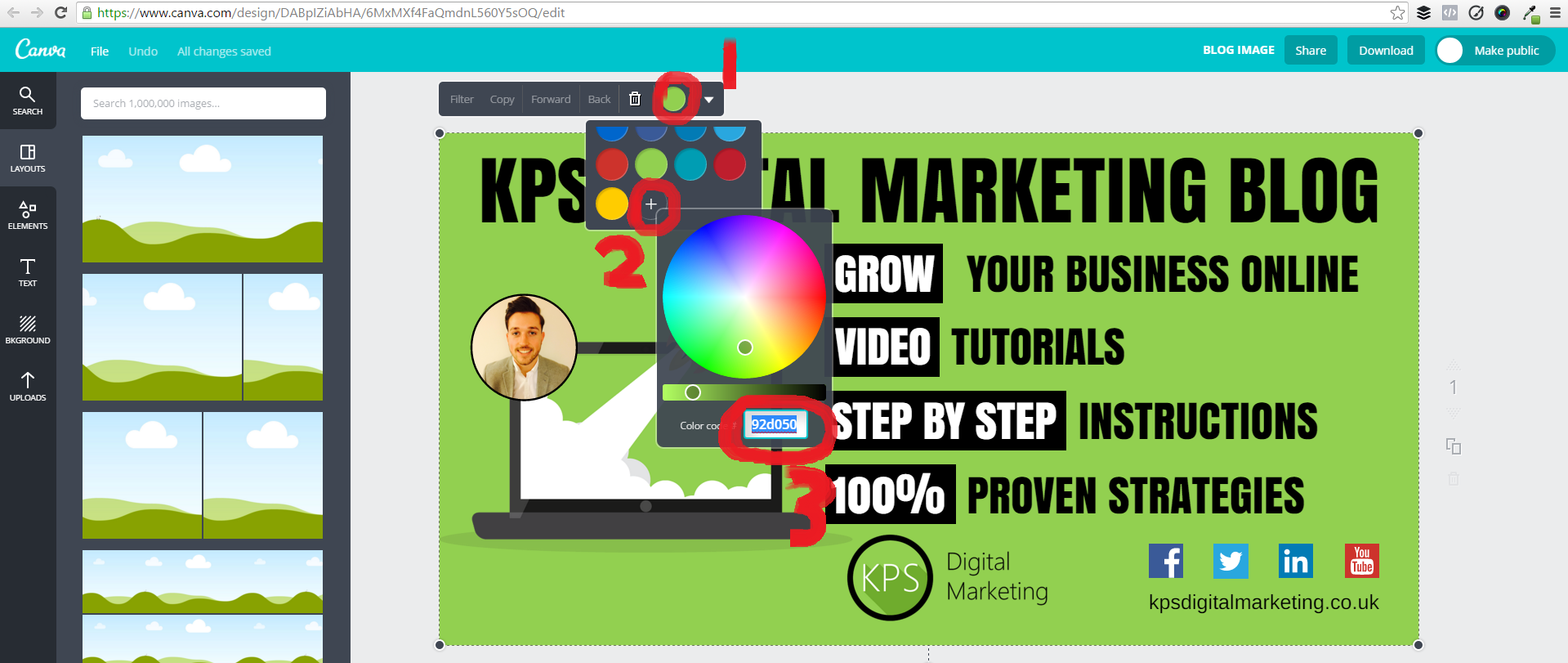
Step 5: Paste the code in your image editing tool/software
In this example we have used Canva, clicked on the colour of the background of this design, clicked the plus and then pasted in the colour code.
Have you tried using this plugin? Did you like the plugin or is there ways it could be improved? Do you have anything to add? I'd love to hear your thoughts in the comments below.
Sign up to receive exclusive subscriber resources. You won't regret it.
[mc4wp_form id="4059"]

Daniel Knowlton
Related posts




-
David Gabriel
-
Daniel Knowlton
-
David Gabriel
-
-