


Kent Excellence in Business Awards 2016 - Winning tips from the experts
January 19, 2016
5 most viral Social Media Examiner posts from 2015
January 26, 2016


Would you like a quick and easy way of reducing the unwanted ‘noise’ on Twitter?
These 3 quick Twitter List tips will show you exactly how to find, group and engage with separate groups of Twitter users – chosen by you.
For example, I use this strategy to find, group and engage customers, potential customers, influencers, employees, family, networking group members etc.
It makes my Twitter activities so much more efficient and saves me a shed load of time!

This tutorial will teach you 3 important things;
1. How to set up a Twitter List.
2. How to find people to add to lists (using a Google Hack).
3. How to engage with people on the lists.

If you're a visual learner, I've created a handy Twitter List video tutorial below which will walk you step by step through the whole strategy on a desktop. If you prefer reading, I've written step by step instructions (with screenshots using a mobile) below the video.
Unlock and watch the full step by step tutorial below to learn exactly how to setup and use a Twitter List.
1. How to set up a Twitter List
1. From your profile click the settings icon

2. Click ‘view lists’.
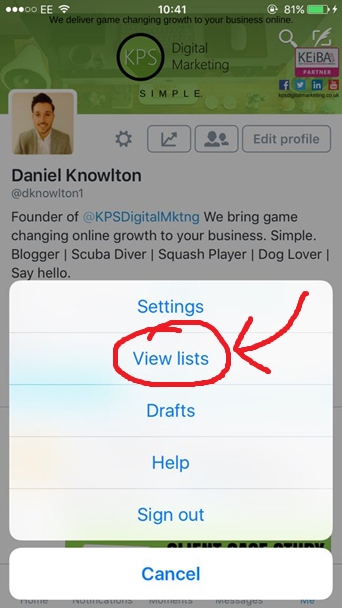
3. Here you can see a ‘subscribed to’ and a ‘member of’ section. The ‘subscribe’ section is a group of lists you have either set up or actively subscribed to. The ‘member of’ section is a group of lists other users have added you to.

4. To add a new list, click the plus icon in the top right corner.
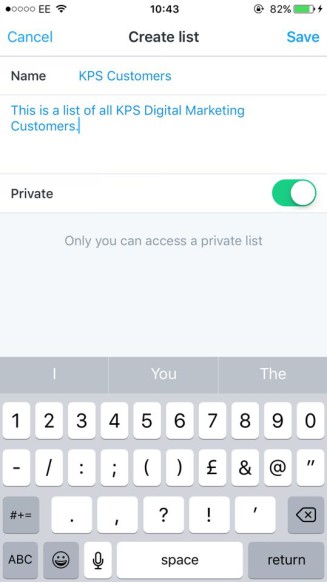
5. Type in a name and description for the list. Now you need to decide if you want the list to be private or public. Click the slider to make it private, leave the slider to keep it public. Only you will see who is added to a private list, where as other members will be notified that you have added them to a public list. Click ‘save’ when complete.
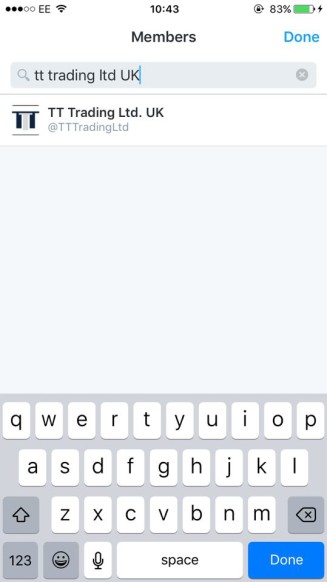
6. When the list is created you can add members by searching for their Twitter handles/ names and clicking on them. Click ‘done when you are finished.
7. To check these users have been added to your list, follow steps 1 & 2 again and click on the list you have just created. Click on ‘members’ and make sure the users you have added are listed.
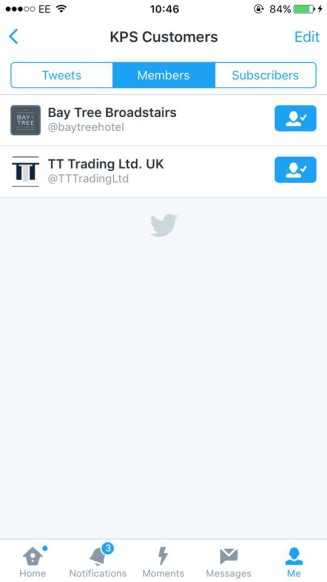
8. Now you are in the list you have just created. Only content from the people you have added to the list will be shown here (this reduces all the ‘noise’ from unwanted Twitter users).

9. If you want to add more users to your Twitter list simply go to their Twitter profile and click the settings icon.
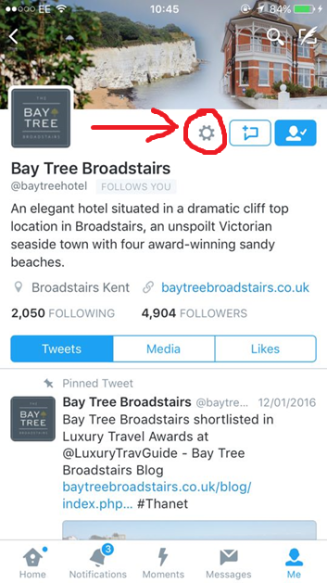
10. Click ‘add/remove from lists’
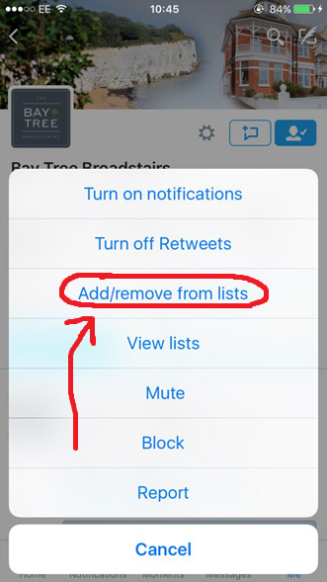
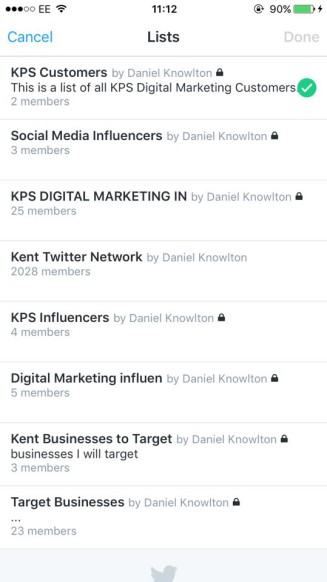
11. Click the list(s) you wish to add the user to. A green tick will appear against the lists that the user is a member of.
2. How to find people to add to your lists
There are 3 super quick and effective methods to find relevant people to add to your lists.
Method 1: Add people you already know
Yes this is extremely simple but very important. You can use the previous section to add Twitter users you already know about to relevant lists.
Method 2: Use Twitter Search
Twitter search is a great tool you can use to find relevant Twitter users to add to your lists. Before using the tool, you need to think of keywords related to the types of users you would like to add to your lists.
For example, if I was creating a ‘potential customers’ list, I would use keywords related to my potential customers such as, ‘kent business’ (see example below).
1. Click search icon.

2. Enter relative keywords.

Once you have found relevant Twitter users, you can follow steps 9 – 11 in the ‘How to Set up a Twitter List’ section of this blog to add them to your list.
Method 3: Use Google x-ray search
I’ve spoken about this before in this tutorial . It basically involves using a Google search to find Twitter lists other people have already created. You can then go ahead and add their members to your own lists (sneaky!).
Follow these simple steps;
1. Type the following into Google and where it says 'enter keywords' enter keywords to do with your list.

For example, I would enter;

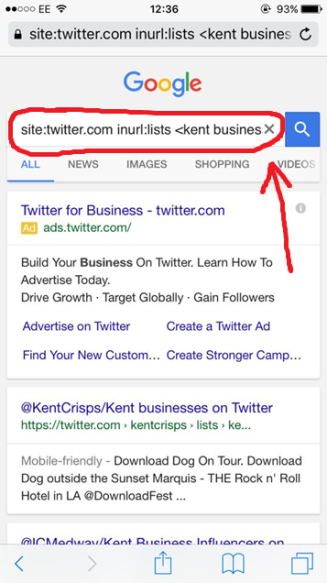
Click on one of the lists.

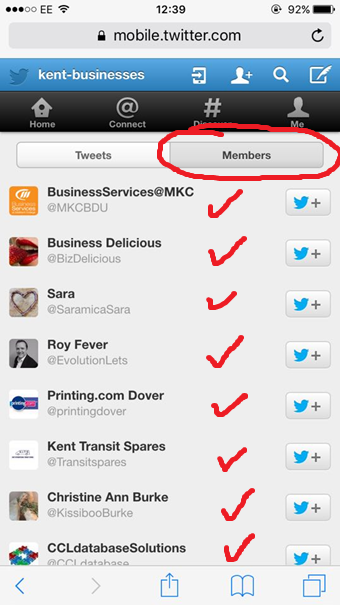
3. Click on members and you will see lots of relative users you can add to your own list!
3. How to engage with list members
Engaging with list members couldn't be easier. From your profile, click the settings icon, then 'view lists' and then click on a list you would like to engage with.
The 'Tweets' section will only show you Tweets from the chosen list member's Twitter feeds. From here simply scroll down and start engaging with their content. Here are some ideas of how you can engage within the lists;
1. Retweet
2. Like Tweets
3. Reply with a comment
Have you tried setting up and using a Twitter List? What are your thoughts on the strategy outlined in the video tutorial? Do you have anything to add? I'd love to hear your thoughts in the comments below.
Sign up to receive exclusive subscriber resources. You won't regret it.
[mc4wp_form id="4059"]

Daniel Knowlton
Related posts



-
Roger C. Parker
-
Daniel Knowlton
-